Installing and Starting FMS Explorer
Use the CygNet Client Installer (CygNet\Clients\CInstall.exe) to install the CygNet FMS Explorer client application. The CygNet Client Installer sets up integrated version management to ensure that you have the latest version of the application files. See CygNet Client Installer for more information.
Effective with v9.8, FMS Explorer is available as a 64-bit or 32-bit version. The 64-bit version offers improved efficiency and performance overall, but does not yet support certain features available in the 32-bit version. Using the Vision control or viewing certain device/facility details (via the View polling device, View polling FAC, or View reporting FAC options) are currently supported in the 32-bit version only. If these particular features are not vital to your workflow it is recommended to install the 64-bit FMS Explorer, but if these features are important to your workflow, you may opt to install an instance of the 32-bit FMS Explorer to access that functionality. Both versions may be installed and running simultaneously, to access all features and functionality as desired.
Installing FMS Explorer
To Install and Start CygNet FMS Explorer Using the CygNet Client Installer
-
Open the CygNet Client Installer (Start Menu > All Programs > CygNet > CygNet Client Installer). The CygNet Client Installer/Launcher dialog box will be displayed.
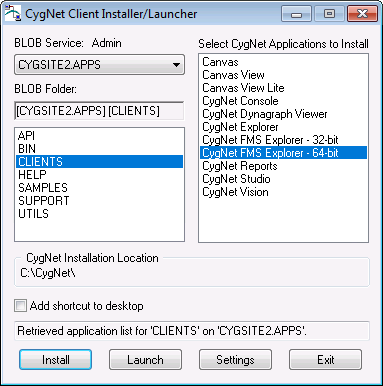
CygNet Client Installer/Launcher
- On the Blob Service: Admin drop-down menu, select your APPS Site.Service.
- In the Blob Folder: list, select Clients to access the list of client applications available for installation.
- In the Select CygNet Applications to Install list, select CygNet FMS Explorer - 32-bit or CygNet FMS Explorer - 64-bit, as most suitable for your usage.
- Click the check box adjacent to Add shortcut to desktop to select/clear this feature. Selecting this feature ensures that you have version management settings.
- Click Install. A confirmation message will be displayed asking if you want to start the application.
- Select Yes to start FMS Explorer.
Starting FMS Explorer
Once FMS Explorer has been installed using the CygNet Client Installer, you can open the application using either of the following methods. Both of these methods provide version management for the FMS Explorer application.
- Start the application using the CygNet Client Installer. Follow the installation procedure above to step 6 and then click Launch.
- Start the application using the Start menu shortcut. From the Start menu, browse to Programs > CygNet > CygNet FMS Explorer - 32-bit or Programs > CygNet > CygNet FMS Explorer - 64-bit and click the application icon
 .
.
|
CygNet FMS Explorer Splash Screen |
Alternatively, you can open the application using either of the following methods. These methods do not provide version management.
- Start the application using Windows Explorer.
Browse to the CygNet\Clients\FMSEXPLORE directory and double-click the FMS Explorer executable (FmsExplore64.exe or FmsExplore.exe).
- Start the application from a command line.
In the command window, specify the location of the FMS Explorer application, C:\CygNet\Clients\FMSEXPLORE\FmsExplore64.exe or C:\CygNet\Clients\FMSEXPLORE\FmsExplore.exe.
Command-line Parameters
Available command-line parameter options are described in the following table.
Parameter Description /Domain:nnnn
To run the application on another domain, specify the domain number using the parameter /Domain:nnnn where nnnn is the port number of the desired domain. Acceptable values are 5001 to 32767.
/noload
To override the workspace file auto-load feature, include the parameter /noload.
Note: There are consequences to using this parameter; use only if necessary. See Troubleshooting CygNet Measurement for more information.


